Categories
Content Ideas Tutorial

Adding a Flickr Slideshow

Maybe you saw the lovely slideshow at the Kansas Library Express site?  Heather Braum and Carolyn Little figured out how to do that last night in the NEKLS training lab.

How they did it:

  1. Went to the Kansas Library Express Flickr account
  2. From the Photostream, they opened up certain pictures and clicked “Actions” and “Add To Set” and created a new Set called ‘July 2010 Courier Photos’
    (OK, I don’t know immediately how to get into the nekls Flickr account, so I’m going to use screenshots from my personal account – the buttons and links are all located in the same places.)
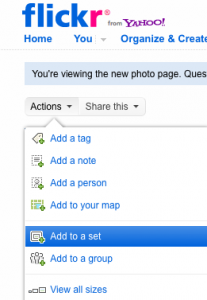
  3. From the Photostream, they opened that Set by clicking on “Sets” and then selected “July 2010 Courier Photos”
  4. Now, up in the right corner in gray text is a link called “Slideshow” – they clicked that!
  5. This opened the slideshow in their Web browser.  To share that in a post on a WordPress blog, they clicked “Share
  6. For a KLOW site, they needed to embed the HTML code into a Post using the HTML editor, so they selected “Copy to Clipboard” under the ‘Grab the embed HTML’ and took this information back to the Kansas Library Express site and pasted it into the empty post!
    (This illustration shows the difference between a wordpress.com site and a wordpress.org, or KLOW, site).

OK, so I’m confident in your ability to open a new post, select the HTML tab to open the HTML editor and ‘ctrl+v’ (paste) in that code that is on your computer clipboard.

I look forward to seeing more embedded Flickr slideshows!
-Sharon

Categories
Library News

Upgrade Overview

At the beginning of the year, all KLOW sites were updated to version 2.9 (overview from WordPress) and now version 3.0 is available (overview).

We hope you see this as an opportunity to update the look, feel and content of your library’s Web site using a more powerful version of WordPress that has enhanced functionality and security.

As administrators, we took the unplanned update in January as a learning opportunity and encourage all of the KLOW participating libraries to update more frequently.

When you see a prompt on the Dashboard to Update, feel free to do so!

So, what can you expect with versions 2.9 and 3.0?

Do you want to update your Theme?
Themes are easy to change and maybe this would be a good time to find a new and better one from the WordPress Theme Directory.

Do you need to restore images and documents lost in January?
Your posts may look strange and links to documents and forms may need to be recreated after the image file or document is added back to the Media Library. The Media Library is a newer feature that lets you to upload Media (pictures, documents, sound clips, videos, etc.) that you can later use in a post or page.  You can also use software like Jing! to create and store screenshots on the Web, then use the “Add an Image > From URL” feature of WordPress to reference an image from the Web, rather than adding the image file to your Media Library.

What’s with the New (and Improved) Dashboard in 2.9 and 3.0?
The old version looked something like this:

The new 2.9 version looks like the 2.7 version that some of you were using.
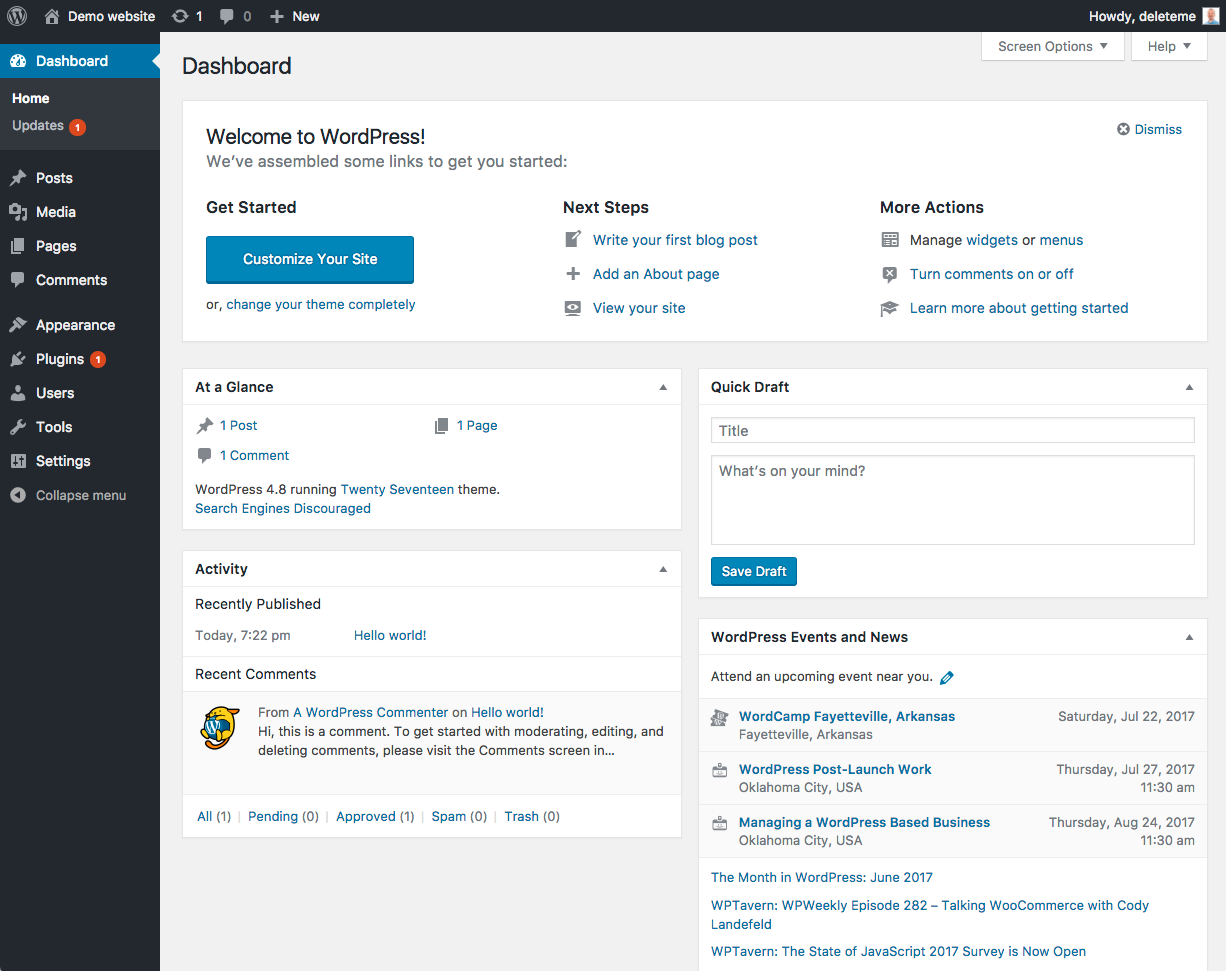
Either way, the new Dashboard looks more like this:

Changes to the Dashboard to be aware of:

  • From the great writers of the WordPress Codex explanation on the Administration Panel: “On the left side of the screen is the main navigation menu detailing each of the administrative functions you can perform. Within each major function, such as Posts, a pull-down arrow is presented when the mouse hovers over the title area. A click of that arrow expands the menu to display each of the sub-menu choices. Clicking that arrow again collapses the sub-menu.”
  • To Add or Edit a Post or Page, instead of going to “Write” or “Manage,” you open the Posts or Pages menu and select the ‘Edit’ or ‘Add New’ link.
  • “Design” has been renamed “Appearance” and moved to the lower left area, after the “Comments” menu.
  • “Media Library” has been shortened to “Media” and you can now add new items to it.
  • “Settings,” “Plugins” and “Users” are now grouped together under “Appearance” and “Tools” appears to be new.

Useful Instructions from the WordPress Site: